
Git for Vibe coders: Stop Losing Your Code
A beginner-proof guide to saving your work, tracking changes, and avoiding “oops” moments – No developer skills required.

If you’ve ever lost changes in a tool like V0, Bolt, or AI Builders and found yourself thinking, “Where did my code go?” –> this is for you.
And the best part is that you won’t even need to open a terminal.
What Even Is a Git Commit?
Think of commits as checkpoints in your project’s timeline
Like saving progress in a video game.
Every time you "push" your changes, you’re locking in a new version of your app – a commit – that Git remembers.
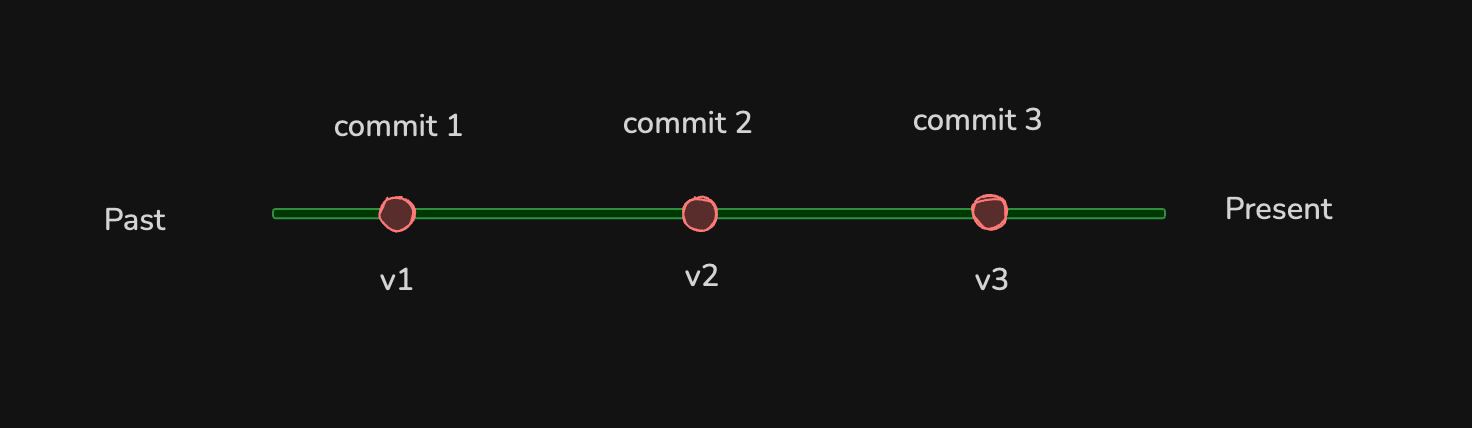
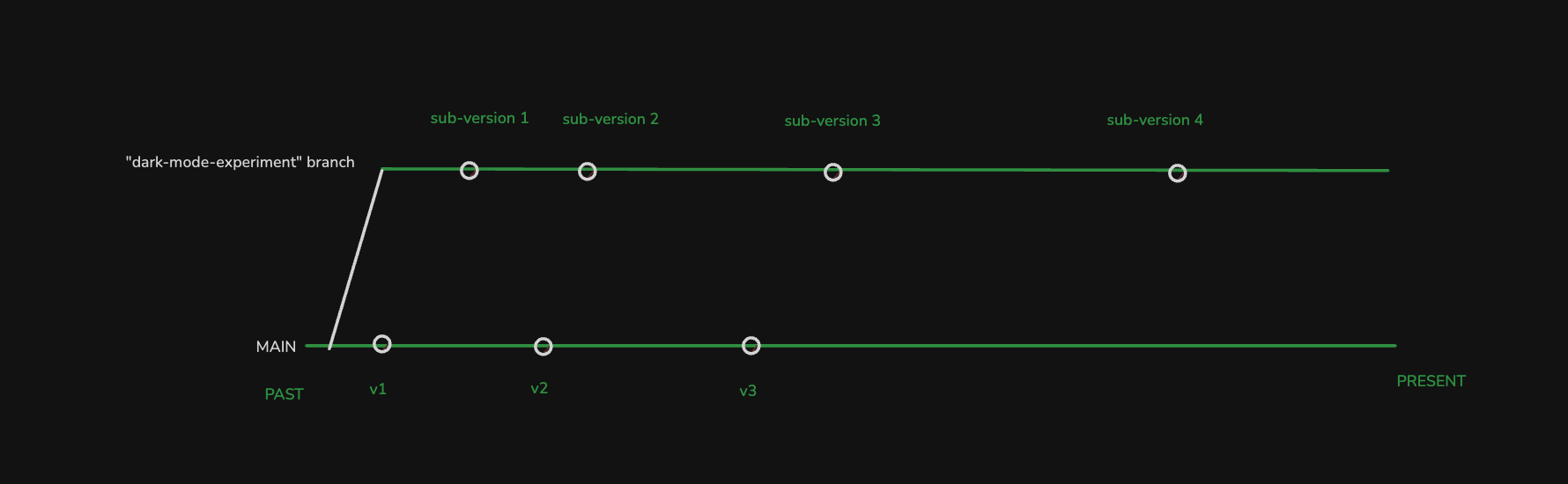
Each (o) is a commit — a snapshot of your code at that point.
v0, v1, v2? These are illustrative to show you how commit are technically like version of your project at different times
When you “undo” in most apps, you’re jumping back to a previous checkpoint.
Git works the same way.
How Commits Work in Tools Like V0, Bolt, and AI Builders
Here’s what happens behind the scenes:
In Bolt, a commit is auto-created when your code runs without errors.
A manual push always creates a commit. So if you hit "push" and didn’t see an error, there’s a good chance your changes are safely stored.
These commits get synced to GitHub, where you can view the entire history of your project.
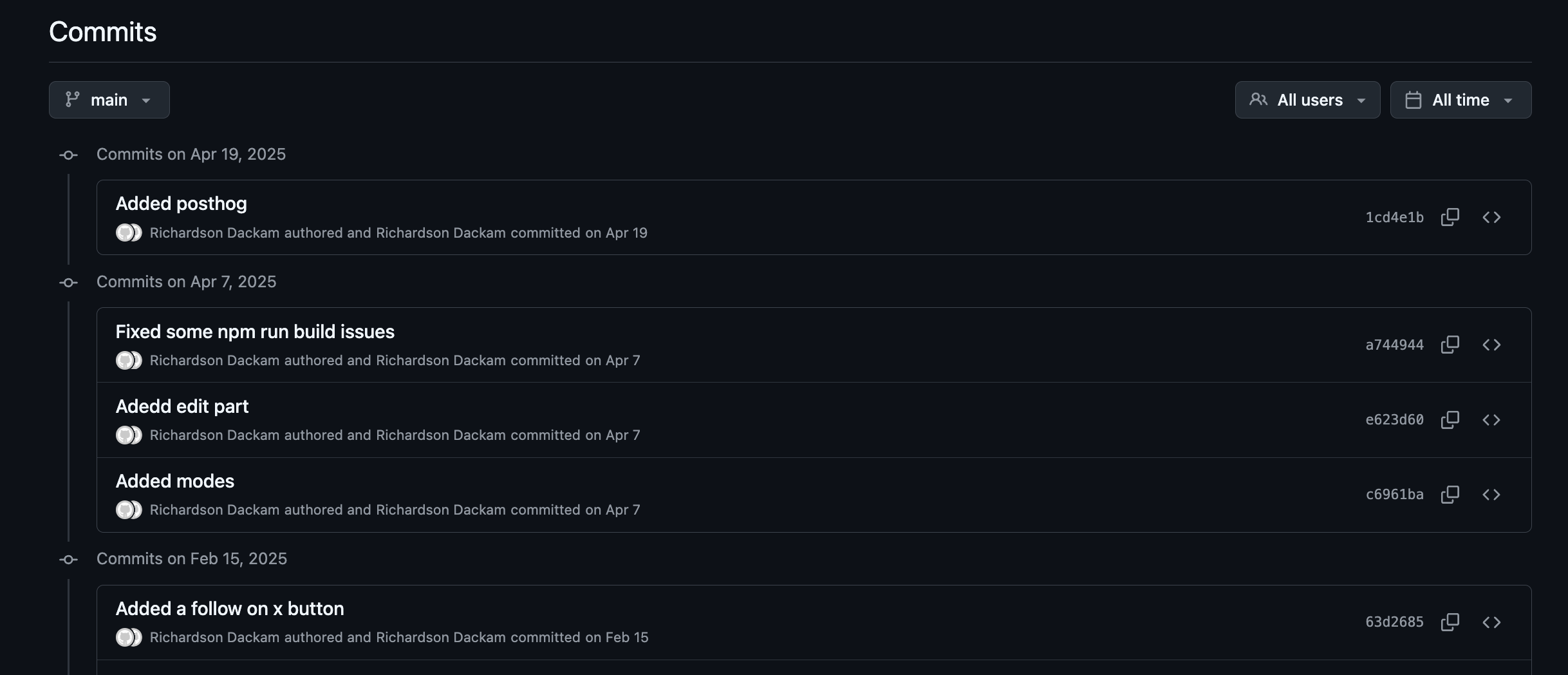
How to Find Old Commits on GitHub
Go to your repo
→ https://github.com/[your_username]/[your_project]Click “Commits”
This shows every checkpoint ever saved.Look for familiar code/messages
Commits show up with short IDs (likee4f1d2a) and sometimes a message (like “added auth screen”).Copy the commit hash
Once you find the right one, copy the full hash and use it to revert.
Example prompt to restore a version in Bolt:
Prompt:
Can you restore the state or changes from this commit e4f1d2a3b8c0d5e6f7a1234567890abcdeffedcbI haven’t tested this across every platform, but if your builder understands Git history, it should work.
Alternatively you could always mention the version.
The Basic Git Flow (in 4 Simple Commands)
Ok no terminal but I’ll teach you the commands anyways.
If you’re using Git from your terminal or want to understand what your tool is doing behind the scenes, here’s the barebones version:
git initThis starts a new Git repo in your project folder.
It's like saying:
“Hey Git, start tracking changes here.”
git add .This tells Git:
“Hey, I want to save all the current changes in every file.”
(The . just means “everything in this folder.”)
git commit -m "message"This creates the checkpoint (the commit).
You add a short message like "added login screen" so future you knows what changed.
git pushThis sends your changes up to GitHub (or wherever your repo lives online).
Think of this as “save to the cloud.”
That’s it!
Just four steps.
You can now time travel through your project’s history like a code wizard.
git logshows your history in your terminal and thanks to your helpful message, you’ll know what each commit was meant for.
Here an example of a git log history:
commit e491431e2fe7008aa2731b423dec8c17ba4668d5 (HEAD -> main)
Author: John Doe <youremail@gmail.com>
Date:   Fri May 16 02:26:00 2025 -0400

    feat: I added a navbar

    - Added a beautiful navbar with a button that says "Say Hello"
    - The "Say Hello" poppup now appears with confettis
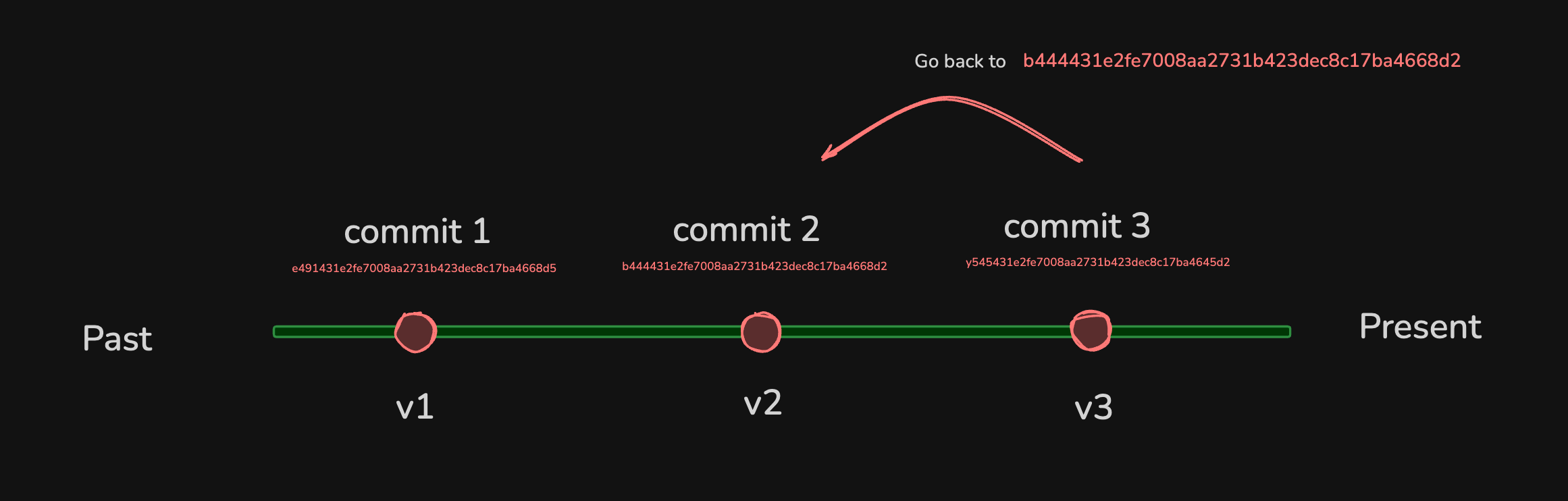
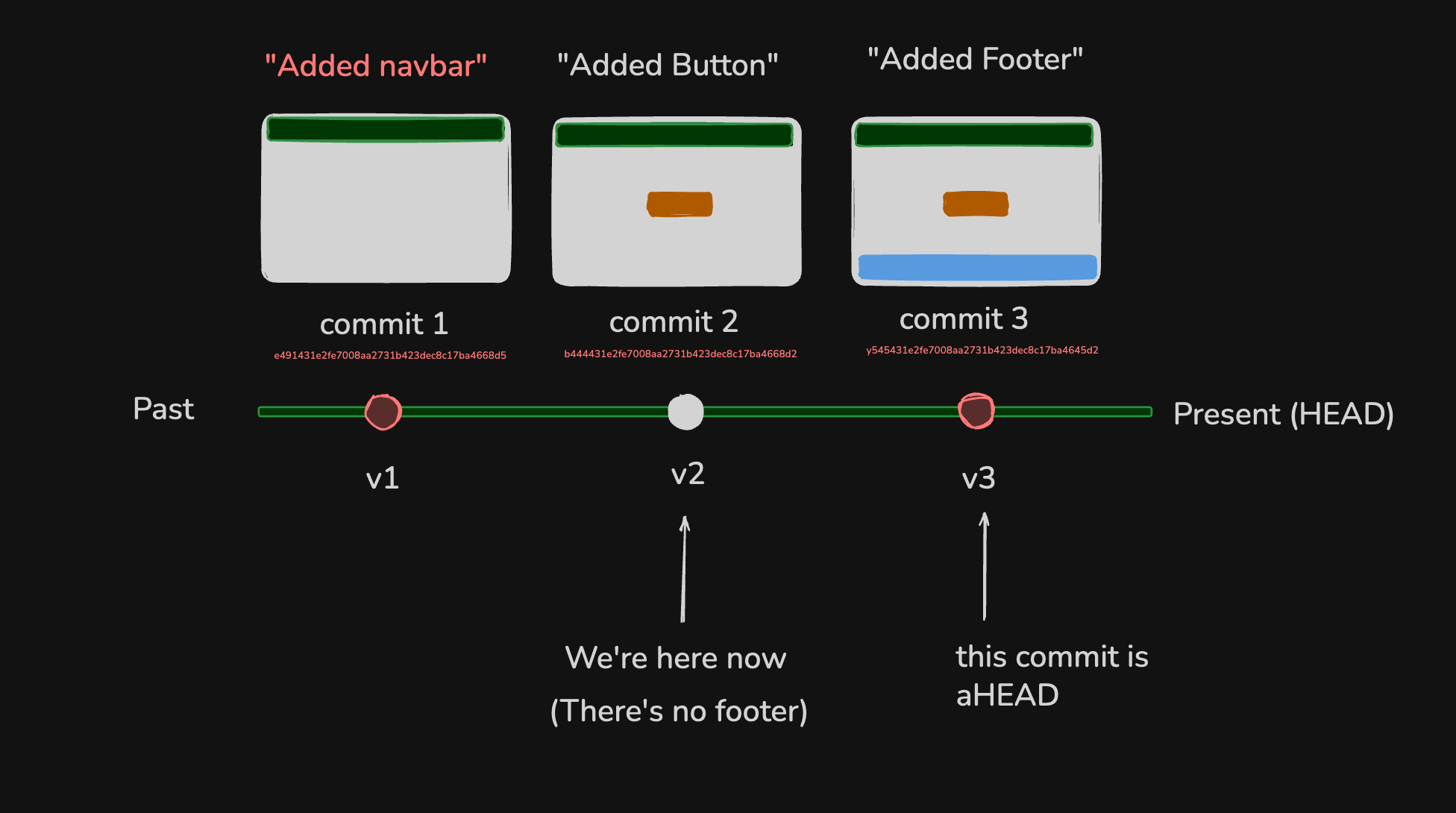
Think of this long `e491431e2fe7008aa2731b423dec8c17ba4668d5` encrypted message as the id for your commit.
This is what marks what the changes at this time in history are.
So if you want to revert your project to that time in history you need to go back to that exact commit.
What’s the Deal with Branches?
Imagine your app is a tree.
The main branch (usually called main or master) is the trunk – the core version of your app that’s live or stable.
A branch is like a little side shoot. It lets you work on a new feature or idea without messing up the main version.
For example:
You want to add dark mode?
Create a branch like dark-mode-experiment, build your changes there, and test freely.
What is Merging?
Once your branch is working and you’re happy with it, you merge it back into the main branch.
This is like saying: “Okay, this new thing works — let’s add it to the app.”
Git combines the changes and tries to blend everything together.
If Git sees any conflicts (like you edited the same line in two places), it’ll ask you to choose which version to keep. It sounds scary, but most tools make it easy with a few clicks or prompts.
Why It Matters
If you're building in tools like V0, Bolt, Lovable or Replit, it’s easy to assume your changes are automatically saved forever.
But that’s not always the case.
Understanding how Git commits work gives you:
Peace of mind: You’ll know exactly where your code went and how to get it back.
Power to undo: You can roll back to a working version when things break (or when AI gets too creative).
Better collaboration: If you're working with others (or AI), version history keeps everything traceable.
Confidence to experiment: Knowing you can revert lets you try bold ideas without fear of losing work.
In short, commits are your safety net.
Learn how to use them, and you stop feeling like your app is held together by hope and duct tape.

What I’ve Been Up To
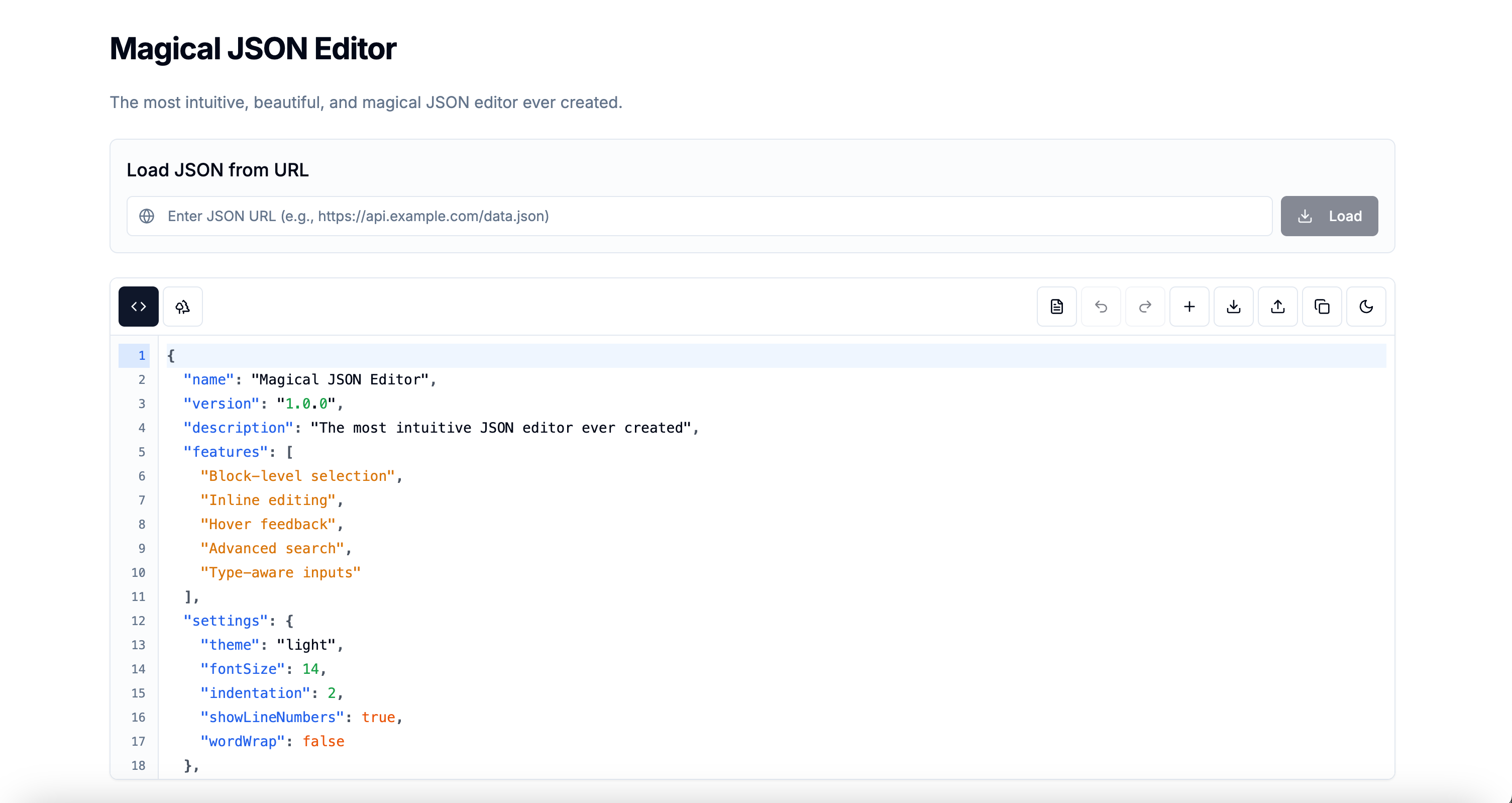
Magical JSON Editor v0.2 is live!
I’ve added an easy way to expand and collapse the items in tree view. You can try it here json.richdackam.com
I’m building an n8n Workflow Generator
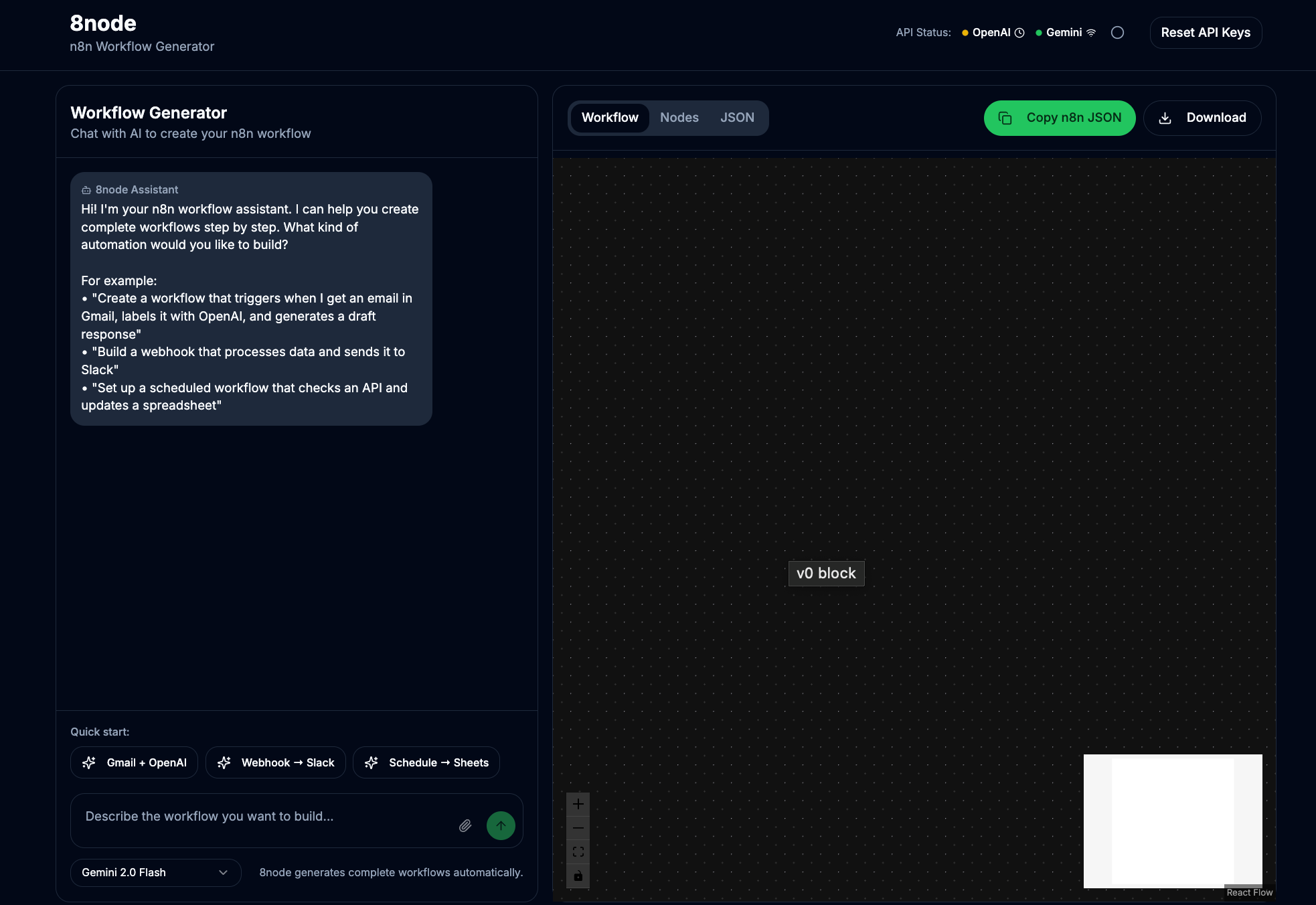
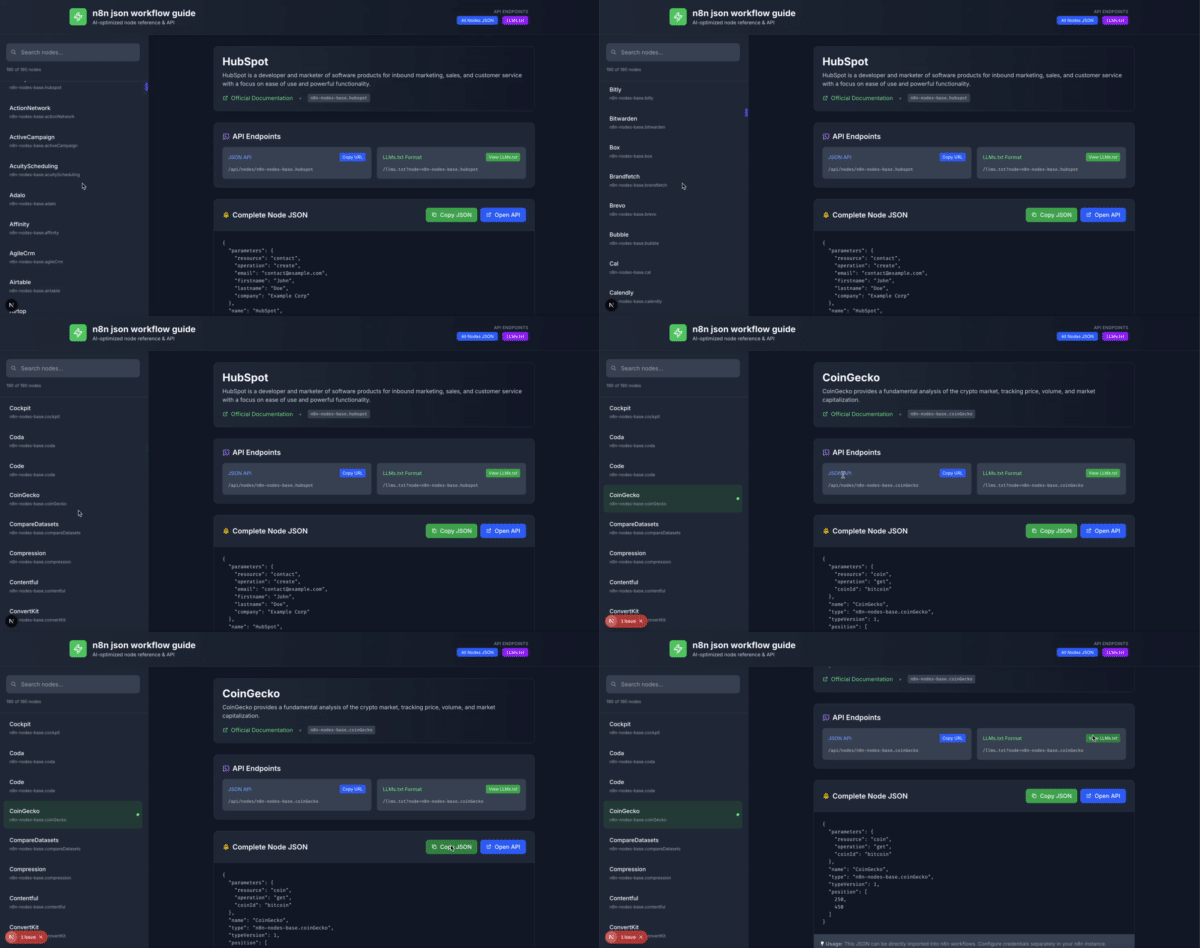
To built this I had to do a tons of research and create guide for LLMs to generate n8n JSON workflows, and even started fine-tuning a custom model to make it smarter. I am super excited for this. (link coming soon. Follow the built on X )
Added a Fallback AI to GitGlance
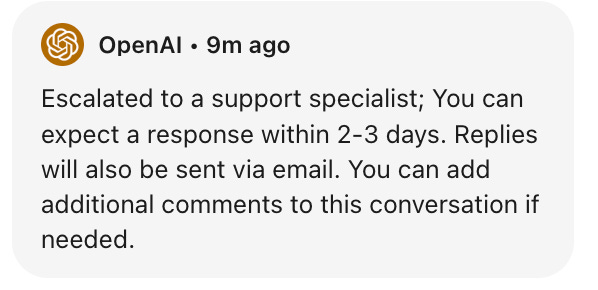
OpenAI had an outage this week, so I added a Gemini fallback. Now GitGlance supports both – because your AI tools shouldn’t ghost you for 2-3 days.
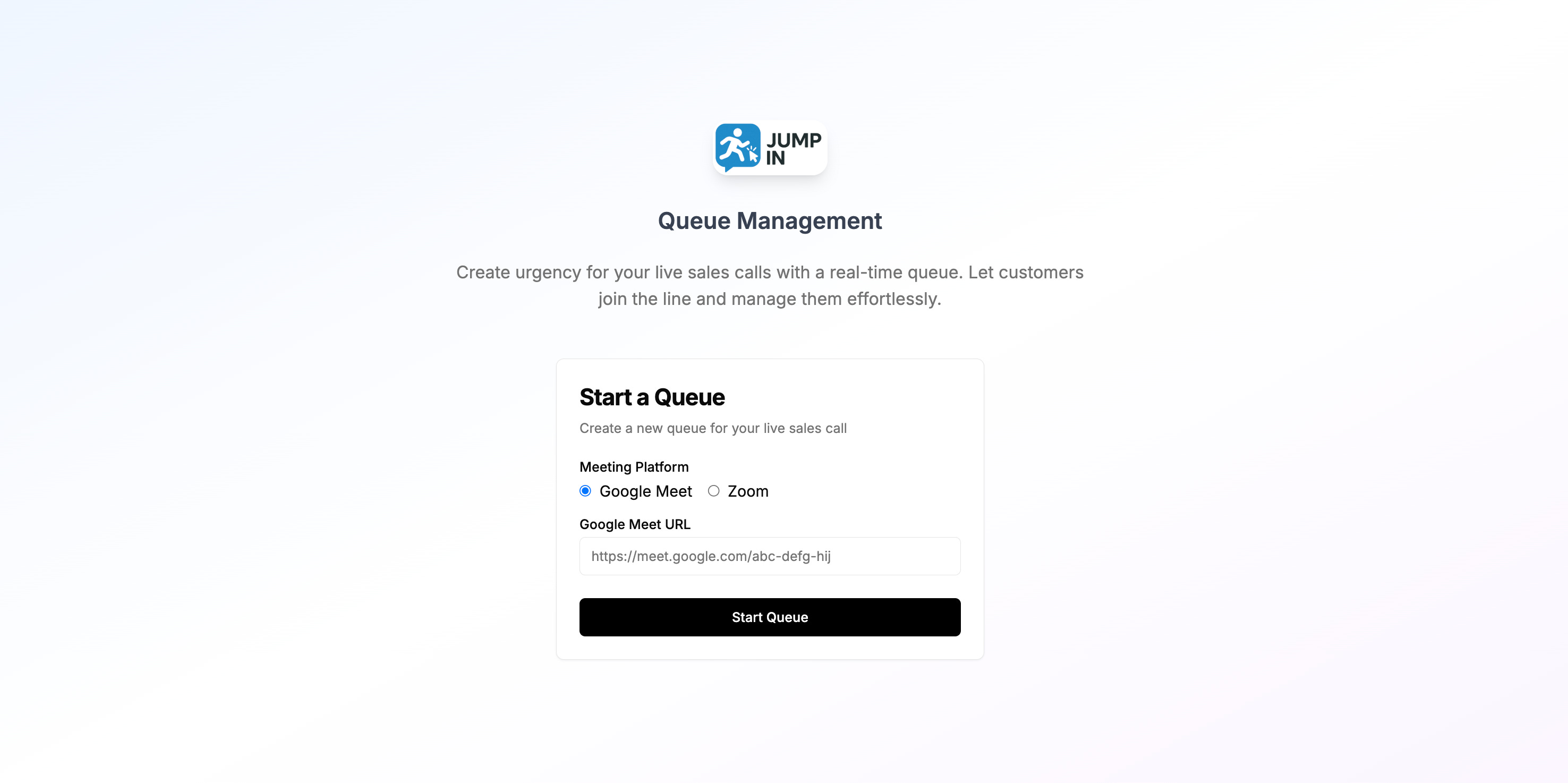
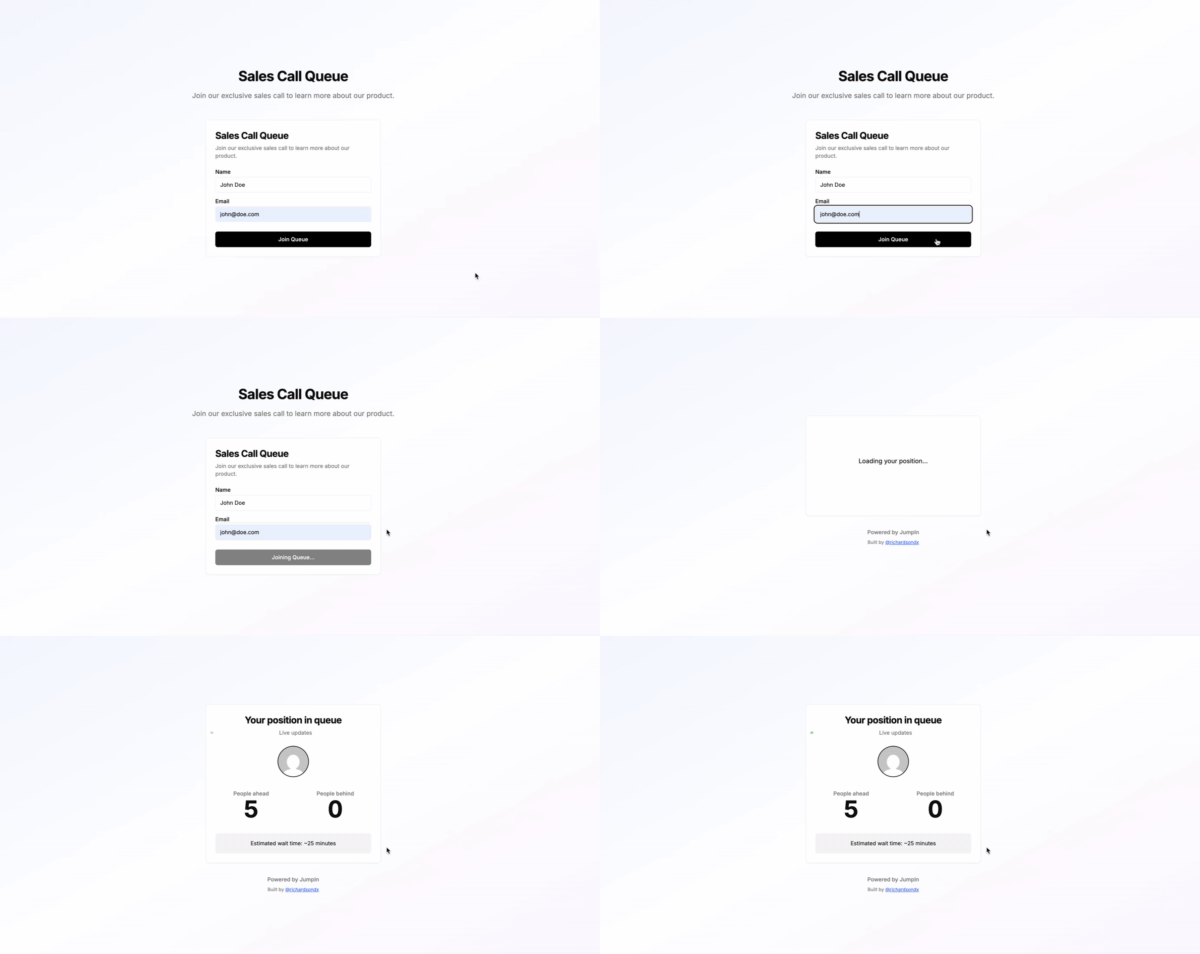
Built a Live Sales Queue Tool. It’s called “Jump In”
Inspired by college kids who shared their google meet link publicly and made $10K off X , I built a live queue system for 1-on-1 Zoom or Google Meet calls. I’m planning a couple live hour sales block on LinkedIn next week for GitGlance. This is for when you want to turn Hustle mode: ON.
That’s it for this week.
If you’ve ever lost changes and felt helpless, I hope this makes Git feel less like a black box and more like a time machine you control.
Reply if you have any questions.
That said, Learn it to make it!
Catch you next week,
Richardson